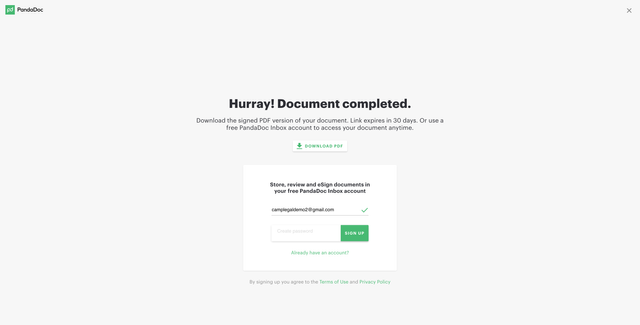
Pandadoc has a Free option to send as many PDFs to your clients to have them electronically sign a PDF.
Instructions
-
In CampLegal, go to your client's case.
-
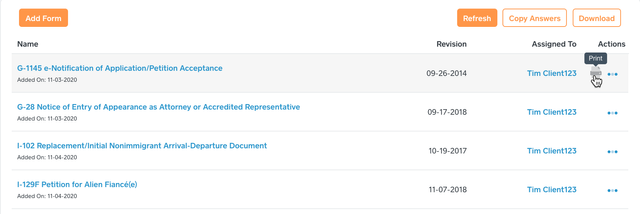
Click Forms and mouse over the form that needs a signature and Click Print.
-
As always, the form opens in Adobe Reader or Acrobat DC Pro but it also downloads to your local computer.
-
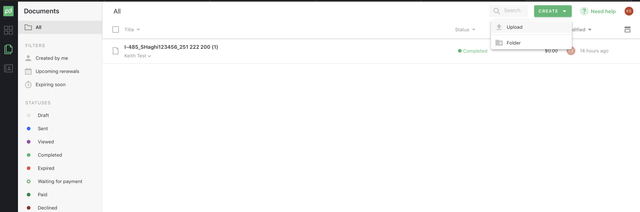
Go to Pandadoc -> Click Create -> Upload -> Select the PDF that was download from CampLegal.
-
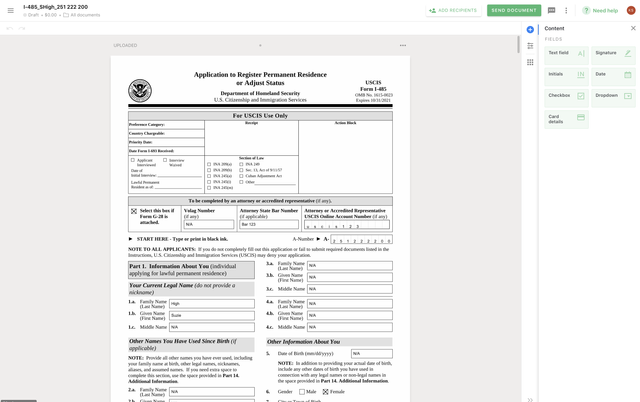
The PDF will automatically open in Pandadoc.
-
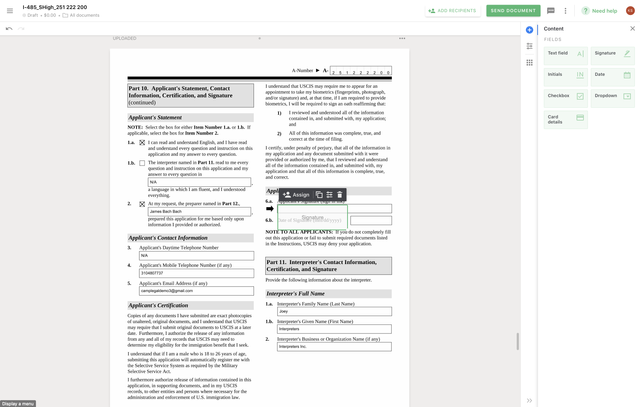
Go to the page where the client needs to sign.
-
Select Signature on the right side and drag it to the signature text box.
-
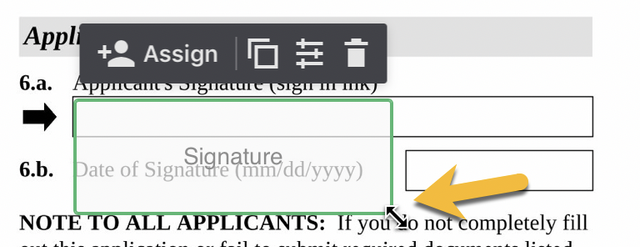
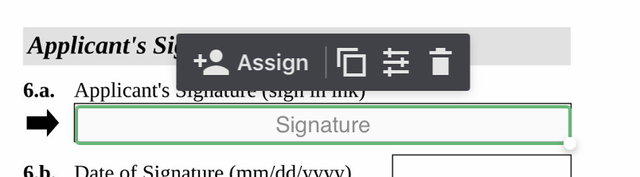
Click in the green Signature box and click the bottom right circle.
-
Now drag the box to fix the signature text box.
-
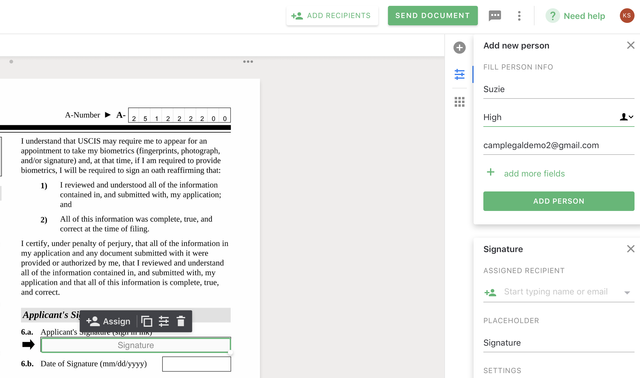
Click the Assign button, on the right side type the email address of the client and input their name.
-
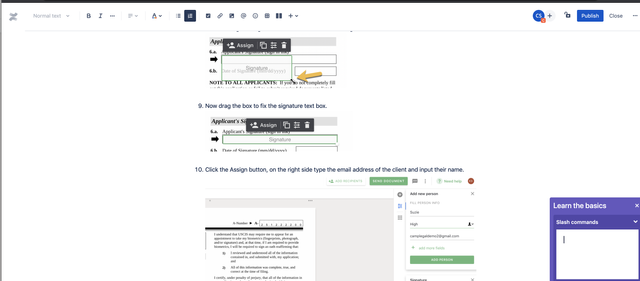
Click Send Document
-
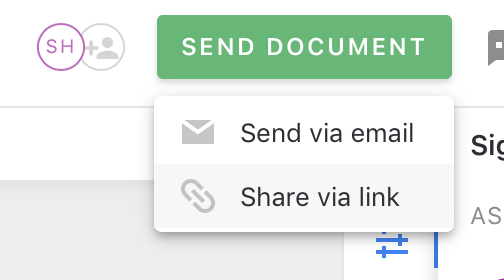
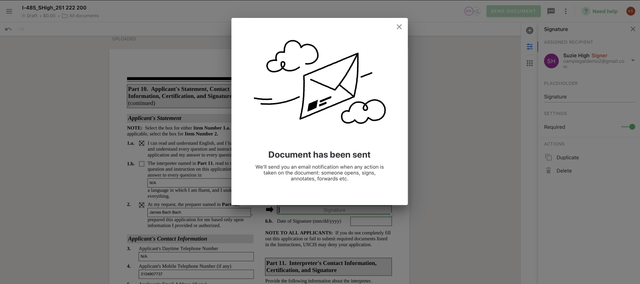
Click Share Link if you want to text the link or Send via Email. If you Share Link, you can copy the link, go to CampLegal and text the link to the client.
-
We choose Send via Email.
-
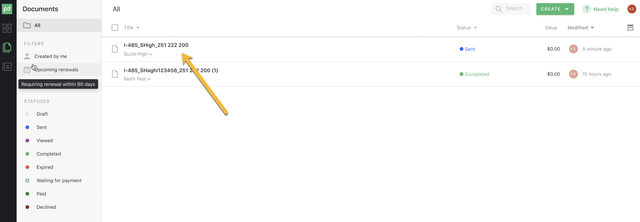
To the progress, click the top-left icon and select Documents.
-
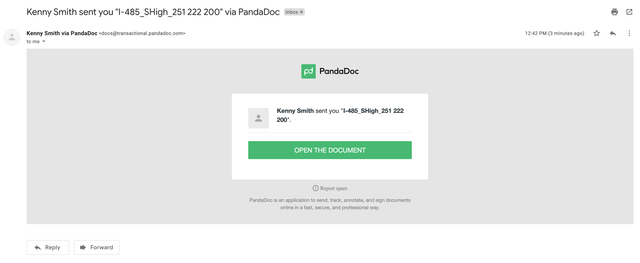
The client will receive an email to sign the PDF document.
-
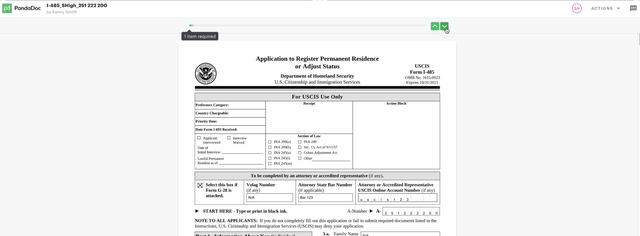
Client clicks the down arrow.
-
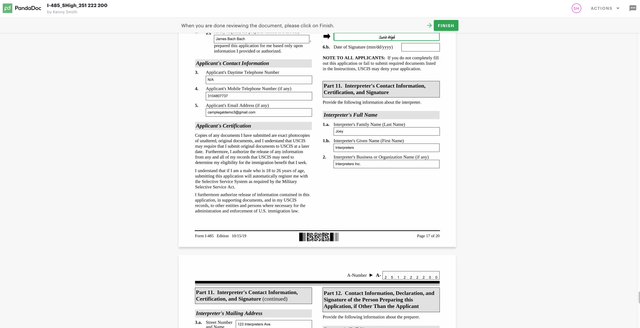
The document will scroll down to the signature part.
-
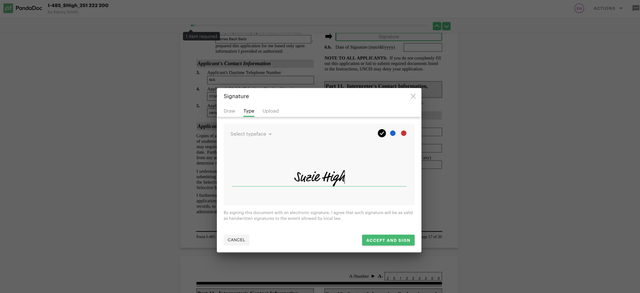
The client clicks into the signature box.