
We offer various staff roles within the system to customize access permissions. This allows you to control what information and features each team member can see and use.
 How to Add/Change a role
-
Go into the Staff section
-
Select the Staff member you want to edit
-
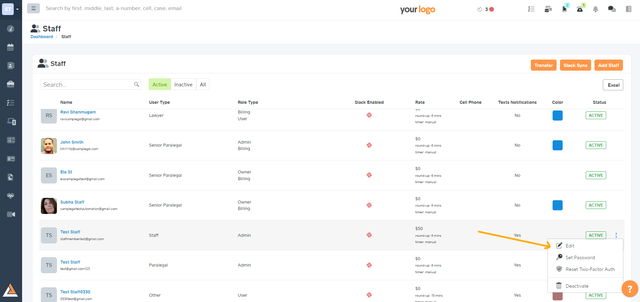
Click on the ellipsis icon and select Edit.
-
Click the dropdown under Role Type and select the role you want to apply.
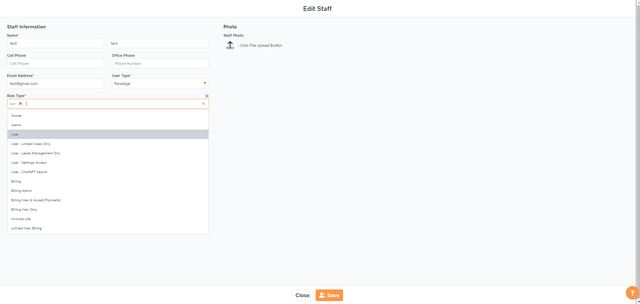
 User and Billing roles
Billing Roles:
-
Billing: Access to all billing sections, you can create invoices and accept payments, including the Dashboard Overview.
-
Billing Admin: Access to all billing sections, you can create invoices and accept payments, minus the Dashboard Overview.
-
Billing View and Accept Payment: Users can view Payments and Invoices, they can't create invoices but can accept payments.
-
Billing View: The user can view Payments and Invoices. They can't create invoices or accept payments.
-
Billing Admin Lite: Allows a user to create invoices with a maximum amount. (It defaults up to $500. We can set a preference for them at another amount.) Ideal for consultation invoices.
User Roles:
-
Admin: Access to all sections of the system. They can see and make changes to other staff member's profiles and system settings.
-
User: Access to all leads, contacts, and cases. Limited access to the system settings. They can't change staff member's profiles. (Basic role, allow access to the system)
-
User Linked Cases Only: Access to cases they are linked to. Access to all contacts and all leads.
-
User Lead Management Only: Access to only
Contacts and Leads. -
User Settings Access: Access to the system settings, they can view and change Law Firm Settings, templates, workflows, etc.
 Related articlesPage: