

CampLegal dynamically creates the client questionnaire when PDF forms are assigned to members of the case. As a user assigns forms to a member of the case, the system automatically adds questions to questionnaire, the user does not have to do anything else.
How the Client Questionnaire Works
A client can access their Questionnaire via the Client Portal.
How to Give Access to the Client PortalHere’s a view in the Client Portal without a PDF form assigned to any member of the case.
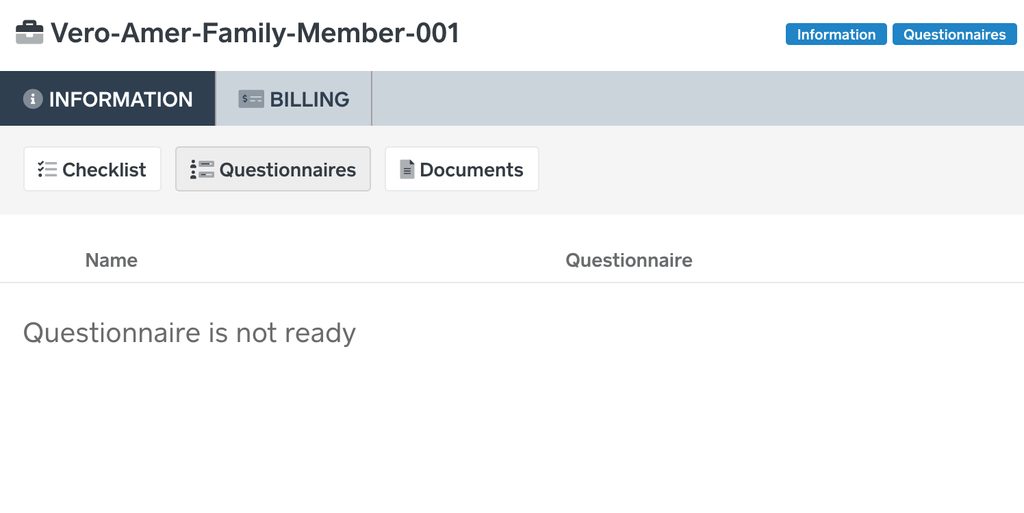
Before a PDF form is added to the case it looks like this in the Firm Portal.
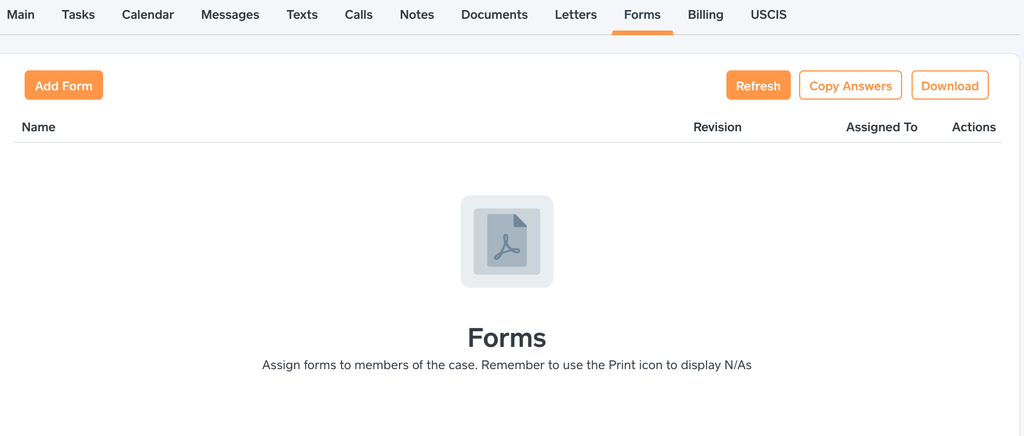
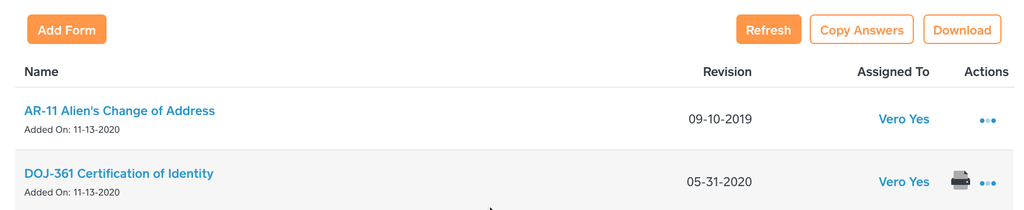
Assign an PDF form to a member of the case. Notice how a form is assigned to two different members of the case. The system will create separate questionnaires for each person in the Client Portal.
The client will see the following in the Client Portal.
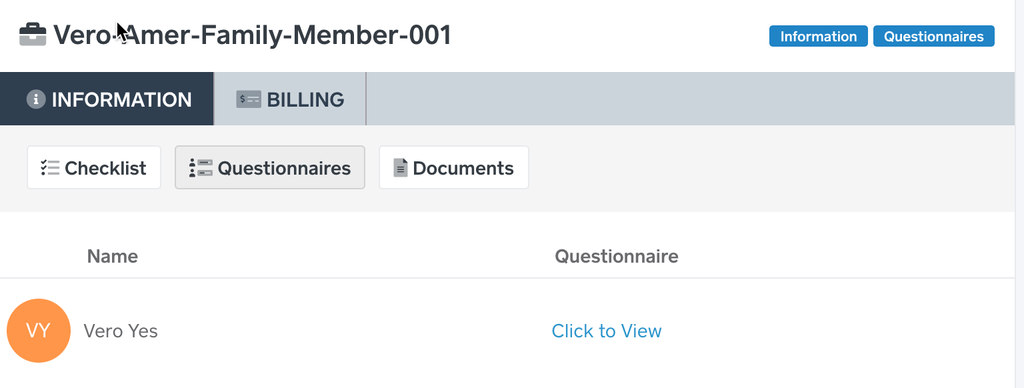
The client will click “Click to View†link to start inputting data into the questionnaire.
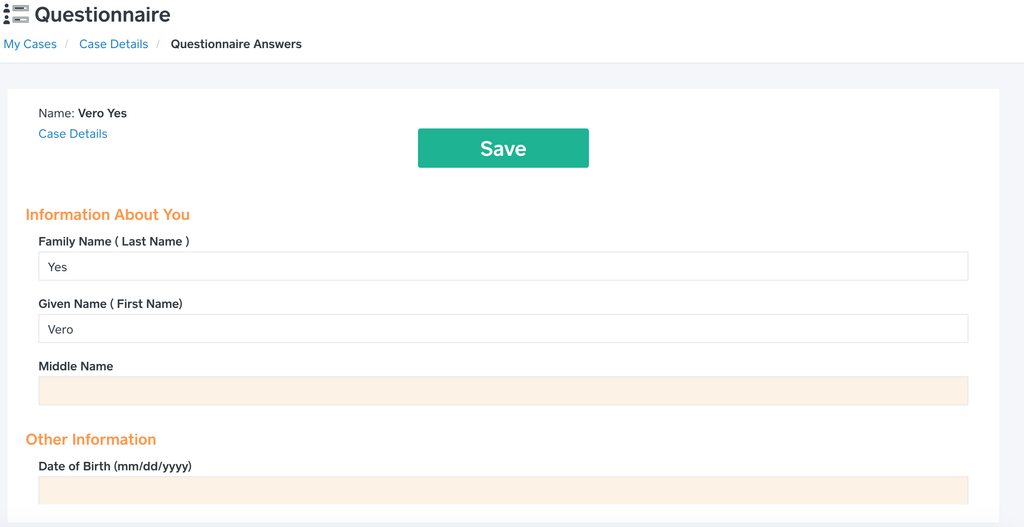
The client can click the “Save†button at any point, the data they inputted will be saved to the PDF forms.

To lock access to the Client Questionnaire, within the case click the Questionnaire lock icon to make it red. The client will not be able to access the questionnaire.
The client portal does support multiple languages including the questionnaire. To change the client’s language, go to their Contact Profile->Edit Profile->Select a new Language.
Questionnaire auto-saves every two minutes and once the Client completes and submits, the lawyer will be notified.