
Instructions to setup Adobe Acrobat Reader and Chrome to work seamlessly with CampLegal. Looks like a lot of steps but it only takes a few minutes.
Download Adobe Reader:
If the above link does not detect your operating system then use this link and select your operating system:
https://get.adobe.com/reader/otherversions/
Instructions
Open Google Chrome
At the top right-hand corner click on “Customize and control Google Chromeâ€
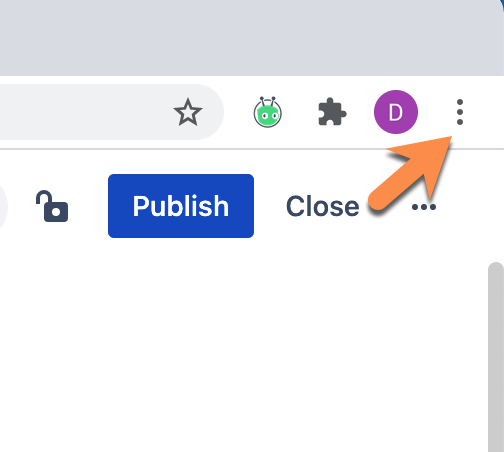
Click on “Settingsâ€
Type in the search box “PDFâ€
Click on “Site Settingsâ€
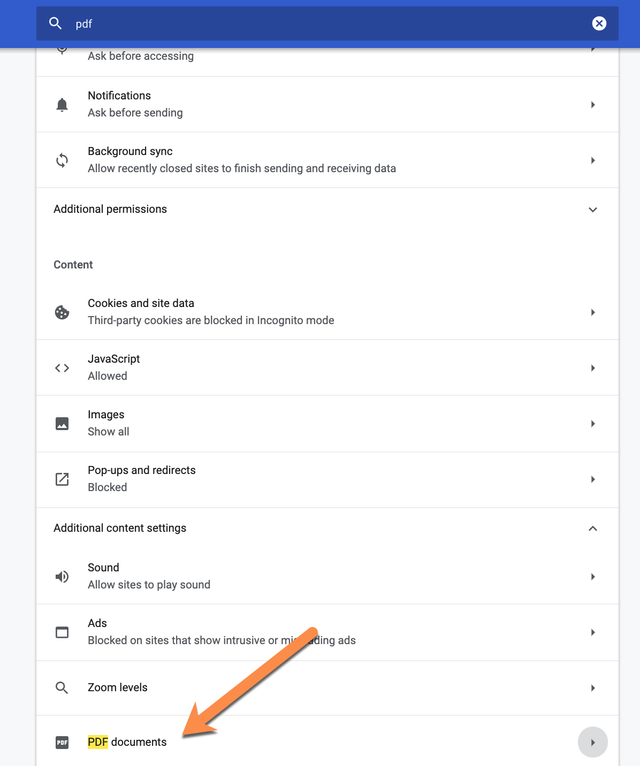
Scroll down to “Additional Content Settingsâ€
Click on “PDF Documentsâ€
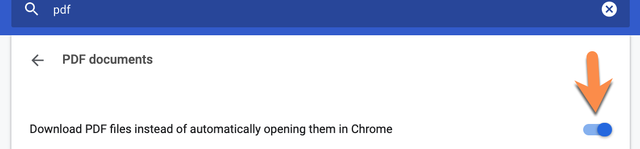
Make sure “Download PDF files instead of automatically opening them in Chrome†is checked Blue
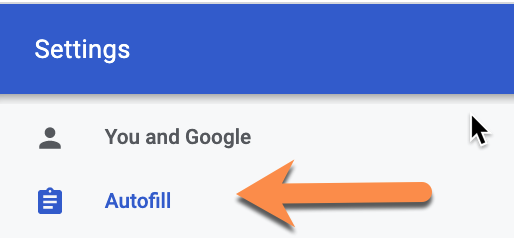
Next, click on “Autofill†located on the left side of the screen
Click on “Address and Moreâ€
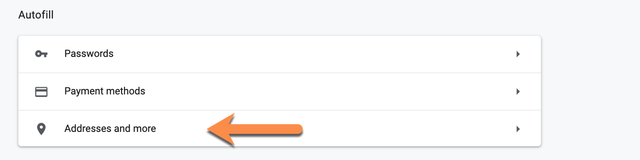
Ensure the box is NOT blue because it will interfere with searches in CampLegal

Go into the CampLegal site and open up your most recent case
Click on “Formsâ€
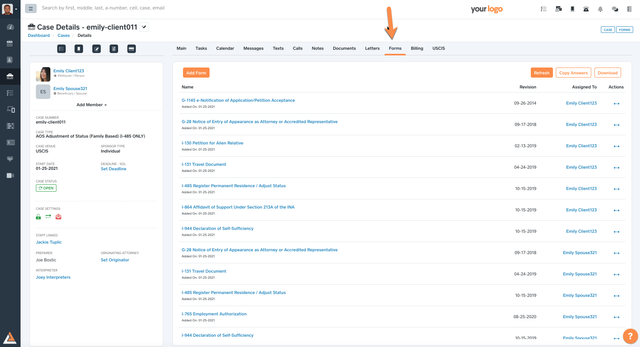
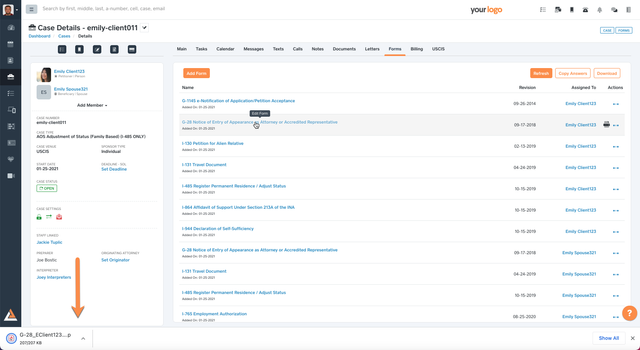
Open any form
If the form DOES NOT open up automatically with adobe, click on the download box at the bottom left-hand corner and click on “Always Openâ€
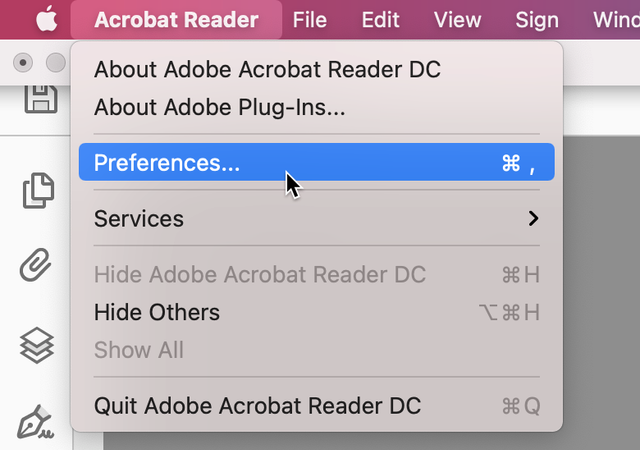
Once you’re in Abobe, click on “Acrobat Reader†at the top-right of your screen
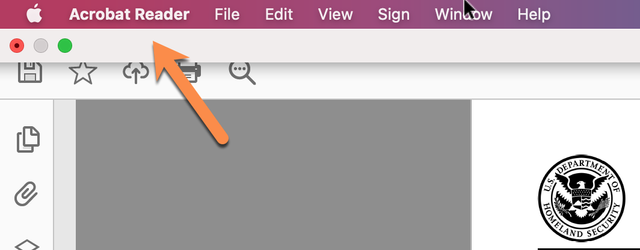
Click on “Preferencesâ€
Click on “Security (Enhanced)â€
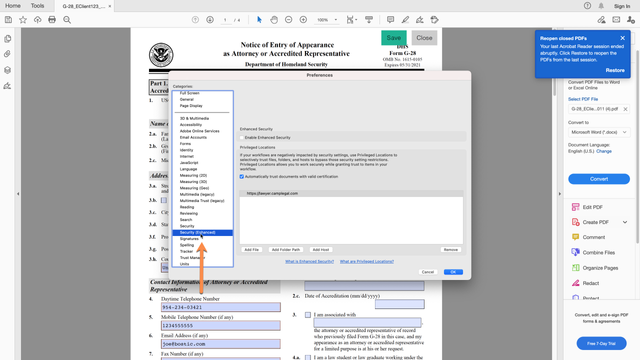
UNCHECK “Enable Enhanced Securityâ€
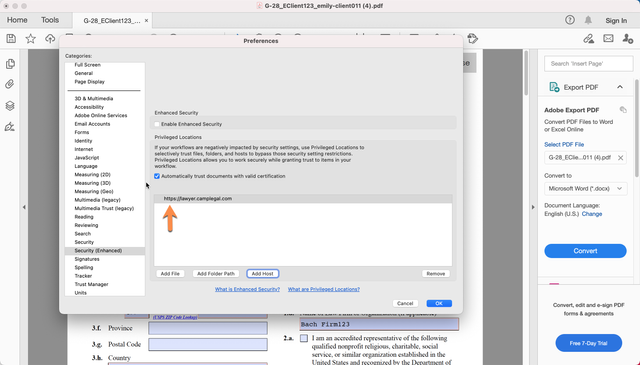
Click on “Add Hostâ€
Type in “lawyer.camplegal.comâ€
Make sure to click on “Secure Connections only (https:)â€
Click “OK†the screen should look like this:
Save the form
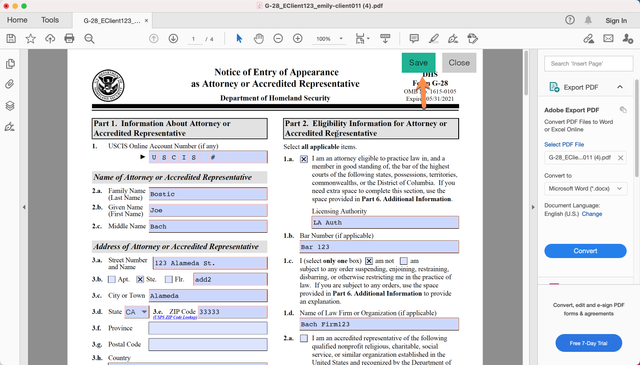
Open the form back up, make a small correction, save it again
Open the form again and make sure that the correction you made is still in the form
